
FSLTL User Guide
This user guide is an overview of using our tool, noting common limitations, issues and behaviors. Please read and check this section first for support. Answers to common questions can be found on the Support FAQ page.
If this section does not help, please join our Discord and reach out through the available support channels.
For support regarding the FlyByWire Installer, please refer to the separate FlyByWire installer guide.
Video Tutorial by BobbyFuzzy
Recommended MSFS Traffic Settings
MSFS 2020
- General Options > Traffic
- Aircraft Traffic Type = OFF
- Ground Aircraft Density = 0
MSFS 2024
- Settings > General > Online
- Traffic Type = OFF
- Settings > General > Graphics > Global Rendering Quality
- Parked Aircraft Quantity = OFF
- Aircraft Traffic Quantity = OFF
FSLTL Injector
The FSLTL Injector is the tool that brings AI traffic based on live traffic data into the simulator. Ensure that you have installed the FSLTL content using the FlyByWire installer app.
Our tool differs from other published injectors by ensuring continued use of the full MSFS experience: ATC is functional, jetways connect to AI planes, and baggage/catering trucks serve parked aircraft.
The injector aims to provide real-time traffic as close to real life as possible.
Running FSLTL
- Start MSFS and load it into a flight
- Open the FBW Installer if it is not open.
- Once the FBW Installer opens, in the left plane, click on the radar icon (3rd icon from the top). This will bring you to the FSLTL menu where you will see two separate options for FSLTL Traffic Base Models and FSLTL Traffic Injector.
- Click on FSLTL Traffic Injector and you should see a status of Not Running under the image header. To start the injector, click on Start to the right and you will see a command prompt window open stating that the injector has started and connected to the simulator.
- You will be prompted if you would like to change the values for the injector. If you would like to do so, enter Y, otherwise enter N.
- Happy flying amongst busy skies! To stop the installer, simply click Stop in the FBW Installer.
FSLTL Injector Options
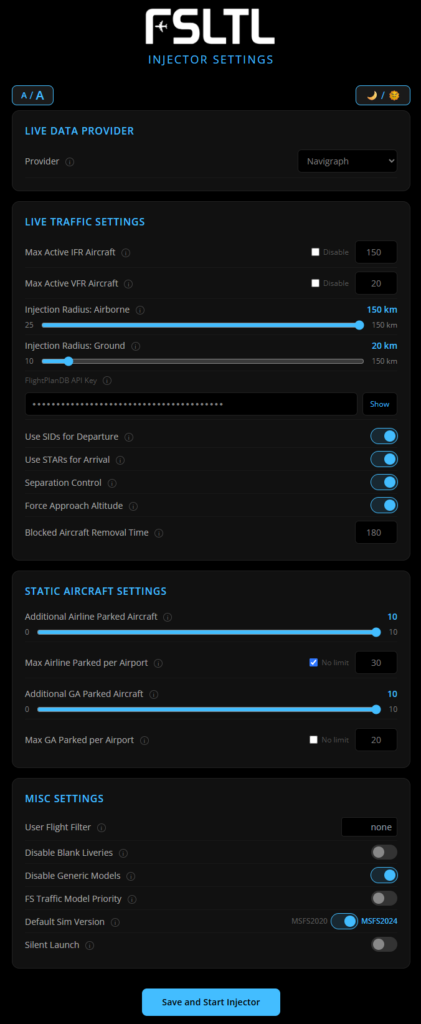
On the launch of the injector, it will display the current injector settings to you in the injector console window. You will then be prompted if you'd like to change those settings (unless you have silent mode turned on). Answering 'Y' to that prompt will open a locally hosted injector settings web page allowing you to set the injector options to your liking.
Injector Settings Web Interface
This injector setting web interface displays the current injector settings. Next to each setting name is an information bubble that will display more information about that setting by hovering your mouse icon over it.
At the top of the page are toggles that modify font size of the page and a toggle for dark/light mode.
Manual Settings File Changes
If you prefer, you can also manually modify the injector config .json file directly. But be aware, if the setting names or values are not what the injector is expecting, the end result in the sim could be unexpected. The information below detail each injector setting.
To update the options of FSLTL manually, browse the injector configuration file and make your alterations:
- The FSLTL Traffic Injector is located here:
%APPDATA%\fsltl-trafic-injector - Right-click on fsltl-trafficinjector-config.json and open in a text editor such as Notepad, Notepad++, or VS Code.
- Enter the values you wish to change and save the file.
Live Traffic Aircraft Settings
Static/Historical Aircraft Settings
In-Sim Running Control Options
While the injector is running, you can control a couple of aspects of its behavior by using the inbuilt toolbar:

- Reset Traffic Injection: Removes all existing aircraft and starts injecting again from scratch
- Remove Nearby Traffic: Removes traffic that is active around you in an approx 5km radius - useful if aircraft are stuck in front of you on taxi or slow aircraft on final blocking your way!
The sliders allow you to update the injector settings (and have the new values written to the config file) in real-time. It can take a small amount of time until they fully update in the sim as aircraft are removed or added.
The Historic Parked setting is an exception to full real-time updates, existing parked aircraft won't be removed when you change this setting but new airports you come across will use the new setting.
Web API calls:
The injector exposes some rest API calls that allow you to trigger some of the functions of the toolbar from an external program or device.
- Settings UI: http://localhost:42888/settings
- Reset traffic injection: http://localhost:42888/reset
- Cull nearby traffic: http://localhost:42888/nearcull
- Kill the injector process: http://localhost:42888/kill
FSLTL in VATSIM
FSLTL is fully usable with VATSIM but will require separate steps to run. The Injector tool should not be used whilst flying a VATSIM session.
Fallbacks for models not included in our solution and blank texture files for any airlines without livery are covered, however, you can use the FSLTL VMR alongside any custom model matching you may have or wish to use.
The FSLTL VMR file, FSLTL_Rules.vmr, can be found in the fsltl-traffic-base folder located in your MSFS Community folder.
Copy this file and place it in your vPilot folder. Within vPilot, add custom model matching and import the FSLTL VMR file. Order the file to the top to avoid overrides from any other VMR you may have.
Scope of Injector Input
- The injector reads real-time data of aircraft location/type/departure/destination. NOTE: there is around a 30-second delay in this data.
- Your injector settings will directly affect the amount of AI aircraft injected into your sim session. Be mindful that this may affect performance. If needed, adjust the FSLTL Injector settings and sim settings as needed to manage the performance impact.
- Flights are point-to-point when not using the FlightPlannerDB option
- Example result: Origin airport to destination airport, linked to MSFS ATC so you will hear them communicate with ATC. ATC will control the take-off and landing of each flight.
- FSLTL Injector uses SimConnect from Asobo to interact with the sim, and changes to SimConnect may be included with any sim update. There are known issues with the SimConnect API and sim itself that can affect the behavior of injected AI aircraft. For more details, see the Known Limitations and Behaviors section below.
- Once injected into the sim, the sim is in control of the movement of AI aircraft for the most part. This is why ATC, TCAS, and other components know all details about the FSLTL-injected AI aircraft in the sim.
- Aircraft are actively removed that move out of range (see distance settings above) from the user's aircraft.
- Injector removes aircraft that go-around to work around the sim behavior of the AI aircraft continuing to circle forever. Go-around aircraft are removed after a 60 second delay to allow the aircraft to gain some distance from the airport (to prevent immersion breaking of vanishing aircraft). They will then typically be parked at the destination airport a short time later assuming parking is available.
- If enabled in settings the injector does insert static aircraft at airports based on statistical probability of real-world historical data for the airport.
- FSLTL injector tries to keep things moving at airports by culling aircraft that become stuck during taxi, pushback, etc. Timeout settings can be modified (see setting detail above).
Windows Firewall Settings
Upon the first run of the injector, you may get prompted that Windows Firewall has blocked some features on all public and private networks. In order for the Injector to communicate with live traffic data providers external to your network, you will need to allow access. Failure to allow will prevent the injector from inserting aircraft based on live traffic data.
Known MSFS AI Limitations & Behaviors
A number of AI limitations and traffic behaviors exist in MSFS 2020 and/or 2024 which affects all AI solutions including FSLTL. These issues require fixes from Asobo which we hope to see in the future. If you wish to upvote the issue, then you can do so via the MSFS forums here.
Aircraft Limitations:
- Aircraft can sometimes randomly disappear when at a gate. (2020/2024)
- Aircraft have only one ground contact point, causing them to 'jump' over gradient changes and in some cases appear to be floating or sunk into the ground. (2020/2024)
- Even with SID and STAR features turned on in the FSLTL injector, Asobo decided the sim should take control of the aircraft flight plan when the aircraft is close to the airport. This often results in unrealistic AI flight maneuvers including unnecessary climbs, descents and backtracking to previous waypoints. (2020/2024)
- Departure aircraft do not always climb at a smooth rate to their assigned altitude and may linger at lower altitudes before continuing their climb. (2020/2024)
- Aircraft may utilize an incorrect runway for the current weather/wind conditions. (2020/2024)
- Departing and arriving aircraft may use a single runway at an airport, even with multiple parallel runways available (2024)
- Aircraft may utilize a runway not normally used for that aircraft type in real life. (2020/2024)
- The sim determines aircraft taxi routes to be the shortest route possible, not the most realistic. (2020/2024)
- Many default airports in the sim have incorrect gate sizes set which may prevent the correct aircraft types from using them (Al aircraft cannot use gates where the parking size is less than the wingspan of the aircraft). (2020/2024)
- Airports with incorrect or incomplete taxi paths and/or runways can cause Al aircraft to become stuck and eventually culled for non-movement. (2020/2024)
- Airline gate/parking assignments are configured in the airport scenery. Incorrect or missing gate/parking assignments will cause aircraft to be placed or parked in unrealistic locations of the airport. (2020/2024)
- Jetway animations are inconsistent when connecting to the aircraft, preventing the jetway from connecting flush to the aircraft on every occasion. (2020/2024)
- Aircraft landing is inconsistent with some aircraft making a low pass over the airport with gear up due to not entering a true landing state (2024)
- Aircraft taxi speed can be extremely slow, causing go-arounds for arriving aircraft as ground aircraft take too long to start takeoff roll or leave the runway after landing (2024)
- Arriving aircraft stop early at the gate/parking causing jetways to be too far away to connect (2024)
- Aircraft service vehicles (pushback tug, stairs, baggage loaders, etc) appear and disappear quickly, often not in the sim long enough to perform their function. (2024)
- Aircraft sounds may cut-out/cut-in based on their distance to the user/camera. Per Asobo, this is by design to fix a non-existent performance issue. (2024)
Other Limitations:
- Identification labels cannot be applied to Al aircraft created using SimConnect. (2020/2024)
- Callsign pronunciation varies between ATC and aircraft. The pilot may pronounce a callsign correctly, yet ATC may pronounce a callsign phonetically. (2020/2024)
- If using MSFS Live Traffic and/or Multiplayer (instead of FSLTL injector) model matching is completely controlled by the sim and may be inaccurate. (2020/2024)
- If using multiplayer aircraft while using FSLTL Injector, multiplayer aircraft may spawn at the same gate as AI aircraft. (2020/2024)
NOTE: When the injector reads real-time data of aircraft location/type/departure/destination, there is around a 30-second delay in this data, along with additional delays due to MSFS inputs. Initial positioning won't be 100% accurate but will be very close to real life. Because the sim is in control of injected AI aircraft, their position in the world may deviate from the real-world position as time progresses.